📅 Published on: January 01, 2026
🧐 Subject: Data Recovery Christmas edition
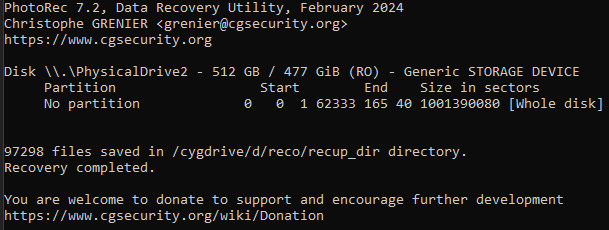
It was around 10PM on the second Christmas day when I wanted to transfer some recordings from my phone to my PC, only to realize that not only my oven and half of the stovetop stopped working that day, but also the Camera folder on my sd card dissapeared misteriously (Yes, I still have a phone that uses one of those, and a headphone jack even, albeit I never use it, Xperia 5V).
I thought it was an odd visual glitch or maybe the phone didn’t mount properly, as I could see all the pictures in the gallery app, they were most likely still cached, but at the same time the amount of free space on the card was way more than what I recalled, and upon a restart and re-opening the photos app, I could see all my pictures and videos dissapearing right in front of my eyes.
Here’s how I averted the crisis and restored all my pictures:
Software required
- Recovery
- 🌟Photorec - Probably the single best recovery tool I’ve tried. it shows you EVERYTHING that’s been deleted and can be restored off the storage medium.
- Recuva - Another really good honorable mention, albeit milleage may vary. I’ve had a fair amount of success other times with this one, but unless deepscan is ticked, there won’t be much if any at all to recover, so do keep that in mind if using. This one has a graphical interface, whereas photorec is terminal based.
- Aesthethics/Clean up
- Scripts to change the create/modify date back to the original date time when the pictures/movies were taken, filter out irrelevant files, and also restore the name
- Un-corrupting videos
- This was the “fun” part, and how I became an expert on moov atoms, mdat, NAL units and other video terms at 1AM. “Few” of the recovered video files were corrupted and couldn’t be played.
- untrunc - This one is great when it works, but in my case, it kept flopping specifically only on the files I actually needed (Murphy’s law, am I right..)
- 🌟recover_mp4.exe - I was pleasantly surprised to find this one last minute, which attempts to extract the raw video data from your file, allowing you to mux it back into an mp4 afterwards.
Recovery process with Photorec
This process will take some time, but to speed it up, you can open the file options menu and select only the expected extensions. In my case it was JPG and MOV/MP4. You will then be asked to chose between partition or whole disk, and here I went with whole disk.
Some other things to speed up the process, if you are a flash drive or a sata/nvme to usb adaptor, make sure to use USB3 ports, and for the location of the recovered files, make sure you select an internal folder on your PC’s ssd, preferably an nvme one, that has plenty of space.
At this point all that is left to do recovery wise is to let Photorec do its job and just patiently wait without touching anything, as depending on the size, it may take some hours.
Post Photorec Cleanup
Once the scan and recovery is over, you will be left with a lot of folders containing data, but a lot of it may be garbage. In my case out of the 97,200 files recovered, almost 90,000 were spotify cached music art among other thumbnails.
Also, before we proceed any further, I would very much advise to make a copy of the recovered files and keep it until the process is over.
Now, this part is very much dependant on your files. It may be done manually, but I had around 100gb spread across 195 folders, so an automation was more or less mandatory. After carefully inspecting the recovered files, in my case at least, it turned out all the pictures were fine. If they were taken from the camera app, they still had exif data, while for the videos, if it was successfully recovered in an non-corrupt state, it still had the creation_time tag.
Long story short, I settled on having 3 directories for the final sorting:
- recovered, for images with exif data and videos with the creation_time tag
- thumbnails, for images bellow 500KB
- corrupt, for videos without the creation_time, which in turn were all unplayable
Bash script used for sorting (CLICK ME)
    #!/bin/bash

    # Root output folders
    RECOVERED="./recovered"
    THUMBS="./thumbnails"
    CORRUPT="./corrupt"
    MISC="./misc"

    mkdir -p "$RECOVERED" "$THUMBS" "$CORRUPT" "$MISC"

    declare -A filename_count

    for i in {1..195}; do #change accordingly
        dir="recup_dir.$i"
        [ -d "$dir" ] || continue
        echo "Processing $dir ..."

        mkdir -p "$THUMBS/$dir"
        mkdir -p "$CORRUPT/$dir"

        for file in "$dir"/*; do
            [ -f "$file" ] || continue
            ext="${file##*.}"
            ext_lc="${ext,,}"

            # --- IMAGES ---
            if [[ "$ext_lc" == "jpg" ]]; then
                size_kb=$(stat -c%s "$file")
                if [ "$size_kb" -gt 512000 ]; then  # >500KB
                    # Get EXIF date
                    date=$(exiftool -d "%Y%m%d_%H%M%S" -DateTimeOriginal -S -s "$file")
                    [ -z "$date" ] && date=$(exiftool -d "%Y%m%d_%H%M%S" -FileModifyDate -S -s "$file")
                    [ -z "$date" ] && date=$(date +"%Y%m%d_%H%M%S")

                    # Handle duplicates
                    fname="$date.$ext_lc"
                    count=${filename_count[$fname]:-0}
                    [ "$count" -gt 0 ] && fname="${date}~$count.$ext_lc"
                    filename_count[$fname]=$((count+1))

                    cp "$file" "$RECOVERED/$fname"
                else
                    cp "$file" "$THUMBS/$dir/"
                fi

            # --- VIDEOS ---
            elif [[ "$ext_lc" == "mp4" ]]; then
                date=$(ffprobe -v error -select_streams v:0 -show_entries stream_tags=creation_time \
                    -of default=noprint_wrappers=1:nokey=1 "$file" 2>/dev/null)
                if [ -z "$date" ]; then
                    cp "$file" "$CORRUPT/$dir/"
                else
                    date_fmt=$(date -d "$date" +"%Y%m%d_%H%M%S" 2>/dev/null || echo $(date +"%Y%m%d_%H%M%S"))
                    fname="$date_fmt.$ext_lc"
                    count=${filename_count[$fname]:-0}
                    [ "$count" -gt 0 ] && fname="${date_fmt}~$count.$ext_lc"
                    filename_count[$fname]=$((count+1))
                    cp "$file" "$RECOVERED/$fname"
                fi

            # --- OTHER FILES ---
            else
                cp "$file" "$MISC/$dir/"
            fi
        done
    done

    echo "Sorting complete!"
At this point you should be almost there. To restore the “authenticity” and prevent the gallery from misdiplaying the data, I ran the following commands in the recovered folder, to change the file creation and modify date back to the original, infered from the file name.
Shell script to change the modify_date and restore extension:
exiftool '-FileModifyDate<DateTimeOriginal' . #change the modify date
exiftool '-filename<${filename;s/\.jpg$/.JPG/i}' . #change extension from jpg to JPG
Powershell script to restore the creation_date:
Get-ChildItem *.JPG | ForEach-Object {
     $date = (Get-ItemProperty $_.FullName).LastWriteTime  # or pick another source
     $_.CreationTime = $date
 }
Un-corrupting videos
This could be a whole blog post on its own. There are a lot of factors and a video file could be broken in more ways than one, but here are the 2 main softwares which helped me:
untrunc
The way this works is by feeding it a good video file as a reference, that was shot on the same camera with the same settings (resolution, format, fps). Based on the reference, it will try to extract data from the broken file and create a new video file. This worked on maybe 90% of the recordings, but on the ones I actually needed, which were shot a bit earlier that day, it kept restoring too little, sometimes giving me back only a quarter of the original recording no matter what options I tried to enable/disable.
Again, the keyword when it comes to data recovery is “mileage may vary”, so I would very much suggest you give this one a shot, it may just work in your case. I used the GUI for some quick testing, then a script for everything else
Batch script for untrunc (CLICK ME)
@echo off
setlocal enabledelayedexpansion

:: Path to a good reference video
set "REFERENCE=C:\path\to\reference_good.mp4"

:: Loop through all recup_dir.* folders
for /d %%D in (recup_dir.*) do (
    echo Processing folder %%D
    pushd "%%D"

    :: Loop through all mp4 files
    for %%F in (*.mp4) do (
        :: Skip if fixed already exists
        if not exist "%%~nF_fixed.mp4" (
            echo Fixing %%F ...
            untrunc "%REFERENCE%" "%%F"
        )
    )

    popd
)

echo All done!
pause
🌟 recover_mp4
I was more or less about to give up and accept the loss, but last minute around 3-4AM (had been a while at this point), I found this. It also requires a healthy video from the same source, but compared to untrunc, it attempts to extract raw video data from the broken file.
You would first run the following on the good reference recording:
recover_mp4.exe 20251205_143858.mp4 --analyze
This will generate 2 .hdr files, which when placed in the same location as the broken file, uppon running the next command:
recover_mp4.exe broken.mp4 result.h264 result.aac --ext
It generates a sepparate audio and raw video output that can be later re-muxed into an mp4 using ffmpeg (ffmpeg.exe -r 29.980 -i result.h264 -i result.aac -bsf:a aac_adtstoasc -c:v copy -c:a copy result.mp4). The raw file can be played in VLC, and while previewing it, I could see there were 2-3 seconds of corruption/artifacts right on the spot where untrunc had the cutoff!
This would be also a very good point to backup all the files to a secure location. I like to do cold backups off my phone once every month or so, therefore even if the recovery completely failed, I would had lost “only” 3 weeks worth of pictures and videos, as opposed to a year and a half if not more.
I hope this helps anyone in a similar situation, good luck!